Verify Sensor setup
Send a prompt, confirm that Cortex captured it, and check workspace sync.
Verify your first capture
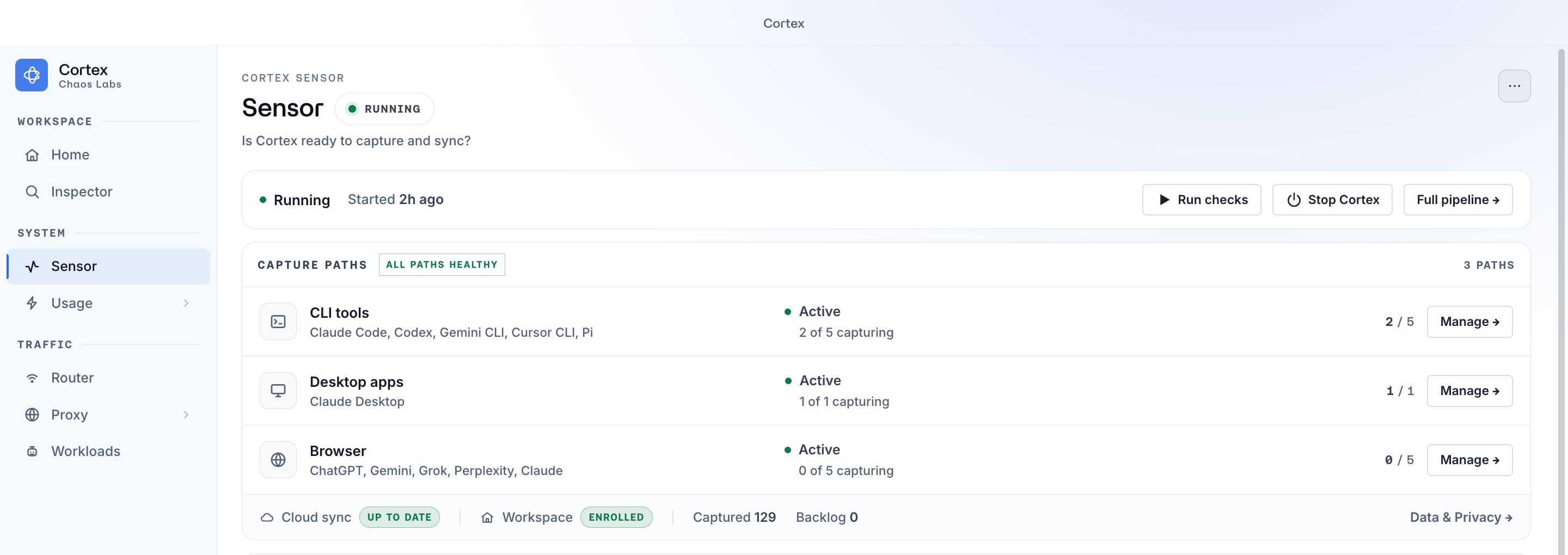
- Open Sensor and confirm the status at the top is Running.
- Under Capture paths, find the path you want to test. Select Configure if it shows Needs setup.
- Open the configured AI source and send a new prompt.
- Open Home → Activity and confirm the prompt appears.
- Return to Sensor. At the bottom of Capture paths, confirm Cloud sync is Up to date, Workspace is Enrolled, and Backlog is 0.
Send a new prompt after configuration. Restart the application if Cortex asks you to.
A device restart is not normally required. Restart once if several newly configured capture paths remain inactive.
Check the result
Setup is complete when:
- Sensor status is Running.
- The status at the top of Sensor shows Running.
- Every source you intend to use is configured and tested.
- Each path you use under Capture paths shows Active, not Needs setup.
- A new prompt from each configured source appears in Home → Activity.
- Home → Activity shows a new capture from the source you just tested.
- Cloud sync is Up to date.
- The footer of Capture paths shows Cloud sync: Up to date and Backlog: 0.
- Workspace is Enrolled.
- The footer of Capture paths shows Workspace: Enrolled.
Test each source separately. See Supported providers and surfaces.
If a prompt appears locally but not in the Cortex dashboard, local capture is working. Check workspace enrollment and sync before investigating dashboard permissions.
Where to check status
| Destination | Use it for |
|---|---|
| Home → Activity | Confirm that a new prompt was captured locally; search and filter captured activity |
| Sensor → top status | Check Running, Starting, Error, or Stopped; select Start Cortex or Run checks when shown |
| Sensor → Needs attention | Follow the recommended recovery action when something is broken |
| Sensor → Capture paths | Configure or manage CLI, desktop, and browser capture paths |
| Capture paths → footer | Check Cloud sync, Workspace enrollment, captured count, and backlog |
| Proxy → Agents | Open an agent row to use Connect agent, Repair connection, Recording allowed, or Import Cursor local history |
| Proxy → Browser & Desktop | Use Web apps → Configure for Web routing, Certificate for Chrome, and browser launch actions; open a source row for its capture switch |
| Settings → About & Updates | Check the installed Cortex version and update state |
After setup
Cortex continues running in the background. If Needs attention appears, follow the recommended action. Test each newly configured source with a new prompt.
To stop capture, see Control capture and sync. If capture stops working, see Troubleshoot Cortex Sensor.